Guide
How to set a video as wallpaper on Android
 Video Live Wallpaper for AndroidGet it on Google Play
On this page
To set a video as wallpaper on Android, you usually need a live wallpaper app, because many phones cannot use your own video as a wallpaper on their own. Open the app, choose a video, adjust how it looks, and tap "Set Video Wallpaper". Android then shows a preview, and you confirm it.
This page shows every step with the Video Live Wallpaper app by Smart App Craft. The app is free to install on Google Play and has in-app purchases. Some phones also have a built-in video wallpaper option. The brand notes at the end of this page explain where that option exists.
What you need
- An Android phone. The app is for Android only.
- A video on the phone, or a video from the app's online gallery.
- A video that you filmed yourself or that you have the right to use. To find one, see the guides to free live wallpaper videos and to videos from TikTok, YouTube and Pinterest.
If your video is long or does not loop smoothly, prepare it first. The guide to turning a video into a live wallpaper explains clip length, trimming and seamless loops.
Set a video wallpaper step by step
- Install Video Live Wallpaper from Google Play and open it.
- Choose a video. You can pick a clip from your phone's gallery. According to the developer, you can also choose a video from the app's online gallery.
- Adjust the video before you apply it. According to the developer, you can turn the sound on or off, change the playback speed, and choose how the video fits the screen (scale or crop).
- Tap Set Video Wallpaper.
- Android opens a preview of the live wallpaper. Confirm it on that screen.
- If Android asks where to use the wallpaper, choose the screens you want, for example the home screen, or the home screen and the lock screen.
- Go to your home screen. The video now plays as your wallpaper.
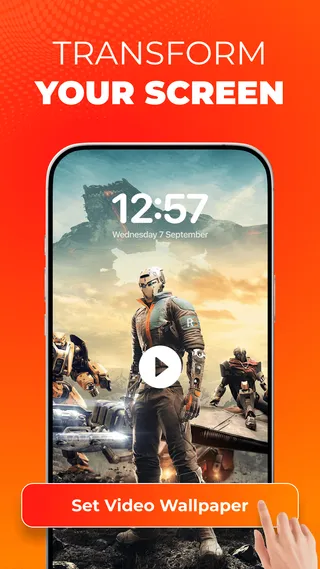
Exact screens and button names inside the app can change with app updates. The labels "Sound" and "Set Video Wallpaper" are the ones shown in the app's official images.
Turn the sound on or off
The app has a Sound option for the video wallpaper. According to the developer, you can switch the sound on or off before you set the wallpaper. Many people keep the sound off, because the video plays every time you see the home screen.
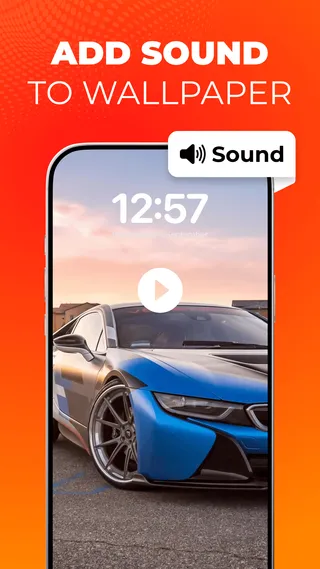
If you hear no sound, check the media volume first. The guide to video wallpaper with sound explains when you hear the sound and how to fix missing sound.
Fit the video to the screen
Most videos are wider than a phone screen. According to the developer, the app can scale or crop a video so it fits the screen better. If your wallpaper looks zoomed in, cut off or has black bars, read the fix for a zoomed-in live wallpaper.
What Android does when you apply the wallpaper
Every live wallpaper on Android goes through the same system step. The app hands the video to Android, and Android shows a full-screen preview. You confirm the wallpaper there.
- Home screen or both screens. Since Android 7.1.2, Android can ask whether to use a live wallpaper on the home screen only or on the home screen and the lock screen. The exact choice depends on the Android version and the phone maker.
- Lock screen. Some phones show a live wallpaper on the lock screen, and some show a still image there. According to the developer, the app can set the video on the home screen, the lock screen or both. What your phone allows is explained in the guide to a video on the lock screen.
- One live wallpaper at a time. On many phones, a new live wallpaper replaces the old one. Setting a still photo as wallpaper also replaces the video.
Phone-specific guides
Phone makers change the wallpaper menus in their own Android versions. Some phones also have a built-in video wallpaper option. These guides cover the four biggest phone families:
- Samsung Galaxy (One UI): a built-in option for the lock screen and, on many models, for the home screen.
- Xiaomi, Redmi and POCO (HyperOS and MIUI): video on the lock screen on some versions, and the app route for the home screen.
- Google Pixel: the "Wallpaper & style" menu and the app route for your own video.
- OPPO, realme and OnePlus: built-in live wallpapers on some models, video wallpapers on newer ColorOS and OxygenOS versions, and the app route for your own video.
Notes for other phone brands
The menu names below come from the phone makers' or carriers' support pages. They may differ by model and software version.
vivo and iQOO
vivo lists video wallpapers in Funtouch OS as a feature for select models only. If your phone has the option, it is in the wallpaper settings. If your model does not have it, use the app steps above.
Motorola
On many Motorola phones, you touch and hold an empty spot on the home screen and tap "Wallpaper & style". That menu offers built-in wallpapers and your own photos. We found no built-in option for your own video in Motorola's support pages, so use the app steps above.
Honor
Honor phones have built-in live wallpapers on some models. We could not confirm a built-in option for your own video in Honor's support pages. Use the app steps above, as on other Android phones.
Tecno, Infinix and itel
We found no official guide from Tecno, Infinix or itel for setting your own video as wallpaper. Use the app steps above. If the video stops after some time, the phone's battery saver may close the wallpaper. The troubleshooting guide shows how to fix that.
Change or remove the video wallpaper
- Use a different video. Open the app again, choose another video and tap Set Video Wallpaper. The new video replaces the old one.
- Go back to a still wallpaper. Touch and hold an empty spot on the home screen and open the wallpaper menu. Choose a photo or a built-in wallpaper. The still wallpaper replaces the video.
- Keep the video file. Keep the original video on your phone while it is your wallpaper. If a wallpaper app plays the video from its original place, moving or deleting the file can stop the wallpaper.
Common questions
Can I set a video as wallpaper without an app?
Only on some phones. Samsung Galaxy phones, some Xiaomi and vivo models, and newer OPPO and OnePlus software have a built-in option, mostly for the lock screen. Google Pixel and Motorola phones have no built-in option for your own video. The phone-specific guides above show what each brand offers.
How long can the video be?
The developer does not publish a maximum length or file size. A short clip of a few seconds loops better and uses less storage, so trim long videos first.
Does a video wallpaper drain the battery?
It uses more battery than a still image while it plays, but a well-made live wallpaper pauses when you cannot see it. According to the developer, the app pauses playback when the screen is off. The page about live wallpaper and battery explains what affects battery use and how to limit it.
If the wallpaper does not work
A black screen, a frozen video or a wallpaper that resets after a restart usually has a simple cause. Common causes are battery optimisation, a moved or deleted video file, and launcher settings. The guide to fixing a live wallpaper that is not working lists each symptom with its fix.