Guide
How to set a video wallpaper on a Samsung Galaxy phone
 Video Live Wallpaper for AndroidGet it on Google Play
On this page
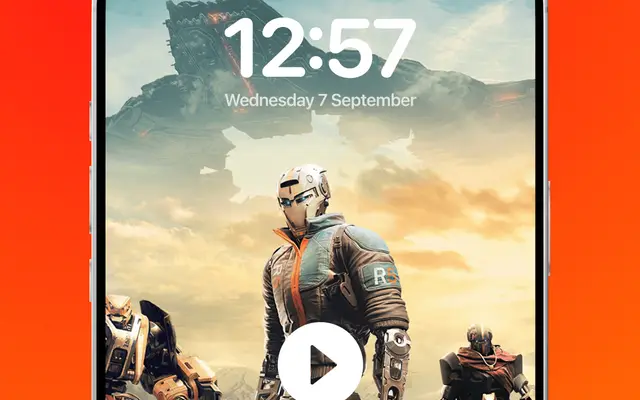
Samsung Galaxy phones can set a video as wallpaper without an extra app. On current One UI versions, you touch and hold the lock screen or the home screen, open the wallpaper menu, choose Gallery and select a video. Samsung then lets you trim the clip before you apply it.
The built-in option is quick, but it is made for short, trimmed clips, and Samsung's support page does not mention sound. If you need more control, use a live wallpaper app such as Video Live Wallpaper.
Set a video on the Samsung lock screen
These steps come from Samsung's support page for One UI. The menu names may differ slightly by model and One UI version.
- Touch and hold the lock screen, then confirm with your screen lock (for example your PIN or fingerprint).
- Tap Wallpapers in the top left corner.
- Tap Gallery and select your video. Tap Done to preview it.
- Tap Trim at the bottom. Move the slider to choose the part of the video you want, and tap the Play icon to check it. Tap Done.
- Tap Done in the top right corner to apply the video to the lock screen.
According to Samsung, you need a screen lock set up to use this option. The video plays each time you wake the screen.
Set a video on the Samsung home screen
Samsung's support page also describes a video for the home screen:
- Touch and hold an empty spot on the home screen, then tap Wallpaper and style.
- Tap Change wallpapers, then tap Gallery.
- Select your video and tap Done.
- Tap Trim, move the slider to choose the part you want, and tap Done.
- Tap Done in the top right corner to apply the video to the home screen.
To have a video on both screens, follow both sets of steps. You can use the same video or two different videos.
Differences between One UI versions
| One UI version | Built-in video wallpaper |
|---|---|
| Older versions (for example, Galaxy S9 era) | Gallery → video → Set as wallpaper, for the lock screen. Samsung's page for the Galaxy S9 lists a maximum of 100 MB and under 15 seconds. Longer videos must be trimmed. |
| One UI 5 | Videos can be chosen in the lock screen editor, with a trim tool. |
| One UI 6.1 and later | The lock screen and home screen editors also show Frame and Effect options. |
Samsung's current support page does not state a maximum length or file size. The Trim tool still asks you to choose a short part of the video.
Built-in option or app: which to choose
| Need | Built-in Samsung option | Video Live Wallpaper app |
|---|---|---|
| Video on the lock screen | Yes | Depends on your One UI version |
| Video on the home screen | On many models | Yes |
| Playback | The trimmed clip plays when you wake the screen | According to the developer, the video plays in a loop |
| Sound | Not described by Samsung | Sound option (on or off, according to the developer) |
| Fit to screen | Frame and crop in the editor | Scale or crop, according to the developer |
| Online video gallery | No | Yes, according to the developer |
A common setup is to use the built-in option for the lock screen and an app for the home screen. Note that a new wallpaper can replace the old one on the same screen.
Set a video wallpaper on Samsung with the app
- Install Video Live Wallpaper from Google Play and open it.
- Choose a video from your gallery.
- Turn the Sound option on or off, and adjust how the video fits the screen.
- Tap Set Video Wallpaper.
- In the Android preview, confirm the wallpaper. If your phone asks, choose the home screen, or the home screen and the lock screen.
The full steps are on the page about how to set a video as wallpaper. What Android and One UI allow on the lock screen is explained in the guide to a video on the lock screen.
Samsung video wallpaper not working
- No video in Gallery list. Check that the video is saved on the phone, not only in the cloud.
- The video stops after a restart. Battery settings can stop a live wallpaper app in the background. Open the app's info page in Settings and check its battery setting. Menu names may differ by model and One UI version.
- Good Lock. Samsung's Good Lock app has modules that change the lock screen and home screen. These modules can affect how wallpapers look. If a wallpaper behaves strangely, check your Good Lock settings.
More causes and fixes are in the guide to fixing a live wallpaper that is not working.