Guide
How to set a video wallpaper on Xiaomi, Redmi and POCO phones
 Video Live Wallpaper for AndroidGet it on Google Play
On this page
On Xiaomi, Redmi and POCO phones, you have two ways to get a video wallpaper. Newer phones with HyperOS 2 or later can put your own video on the lock screen with a built-in option, on eligible models. For the home screen, or on any other model, use a live wallpaper app: choose the video, tap Set Video Wallpaper, and confirm it in the Android preview.
Xiaomi phones run MIUI (older models) or HyperOS (newer models). Menus and features differ between versions and between models, even within the same series. The steps below describe what to look for, because the exact menu names may differ on your phone.
Check your software version
Before you start, check which version your phone runs. Open Settings and tap About phone. You will see either a MIUI version or a HyperOS version.
- MIUI (for example, MIUI 12 to MIUI 14): built-in live wallpapers and Super wallpapers on some models; no built-in option for your own video found in Xiaomi's sources.
- HyperOS 1: lock screen styles and wallpapers can be changed from the lock screen editor; built-in video for the lock screen not confirmed.
- HyperOS 2 and later: Xiaomi added the option to use your own video on the lock screen, on eligible models.
Built-in option: video on the HyperOS lock screen
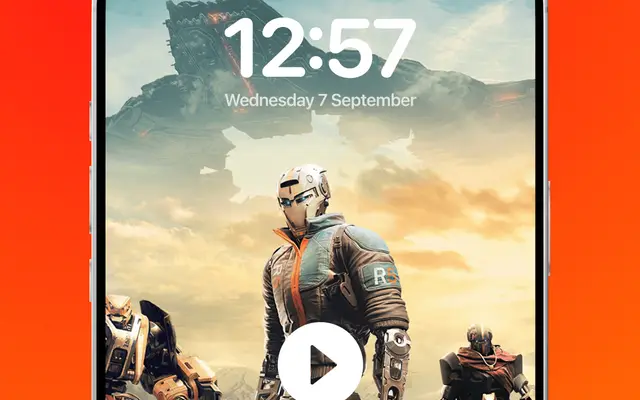
According to tech news coverage of HyperOS 2, Xiaomi introduced a lock screen feature that plays your own video or clip. It can also show a depth effect, where the clock appears behind the subject of the video. Xiaomi rolled out HyperOS 2 to eligible models only, so your phone may not have it.
To look for the option:
- Touch and hold the lock screen, then unlock the phone.
- Choose a lock screen style and look for an option to customise it.
- Open the wallpaper choice and look for videos or your gallery.
If you do not see videos there, your model or version does not support it. Use the app route below instead.
Built-in live wallpapers: Themes and Super wallpapers
Xiaomi phones also offer ready-made moving wallpapers:
- Themes app. Xiaomi's Themes app has wallpapers and live wallpapers made by Xiaomi and by designers. Some are free, and some are paid. These are ready-made wallpapers, not your own video.
- Super wallpapers. Some models have animated system wallpapers, such as planets that zoom in when you unlock the phone. Super wallpapers are available only on some models.
- AI dynamic wallpaper. On some HyperOS models, Xiaomi can animate a photo from your gallery. This works only on supported models.
App route: any video on the home screen
A live wallpaper app works on Xiaomi, Redmi and POCO phones as on other Android phones.
- Install Video Live Wallpaper from Google Play and open it.
- Choose a video from your gallery.
- Turn the Sound option on or off, and adjust how the video fits the screen.
- Tap Set Video Wallpaper.
- In the Android preview, confirm the wallpaper. If the phone asks, choose the home screen, or the home screen and the lock screen.
The full steps are on the page about how to set a video as wallpaper.
Lock screen and home screen on Xiaomi
Xiaomi phones manage the lock screen separately from the home screen on many versions. Because of this, a live wallpaper from an app may show only on the home screen. The lock screen may keep its own style or image.
A common setup is:
- Your own video on the lock screen with the built-in HyperOS option, if your model has it.
- A video on the home screen with a live wallpaper app.
The guide to a video on the lock screen explains what Android allows in general.
Xiaomi video wallpaper stops or resets
Xiaomi phones have strict battery management. It can stop apps that run in the background, including live wallpaper apps. If your video wallpaper stops, freezes or changes back to the default wallpaper:
- Open the app's info page in Settings.
- Look for the battery saver setting of the app and choose the option with no restrictions.
- If your phone has an autostart setting for apps, allow it for the wallpaper app.
Menu names for these settings differ between MIUI and HyperOS versions. More fixes are in the guide to fixing a live wallpaper that is not working.